 DuoApps
Mail on iPhone Duo: what Apple shows
Apple shows Mail on both displays of iPhone Duo. With the device closed, on the outer display, Mail shows either the list of emails or a single email. With the device open, on the inner display, it shows both side by side: the controls for the list stay above the list, and those for the email move to the side, along the edge of the screen.
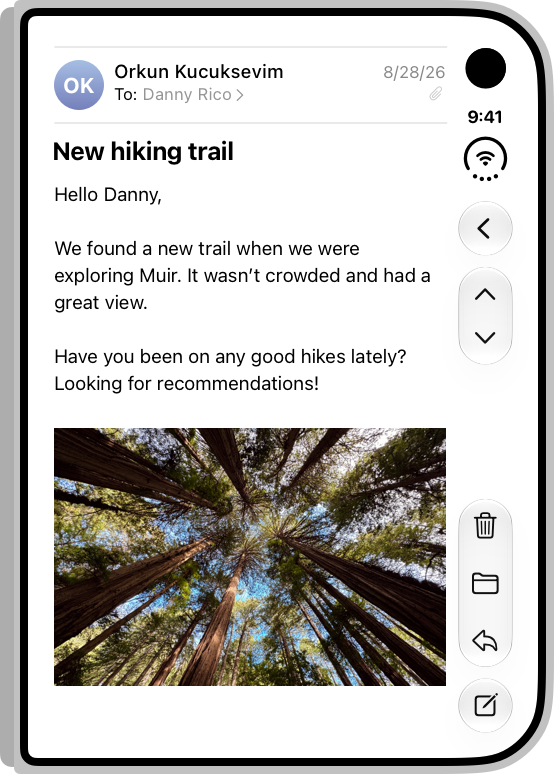
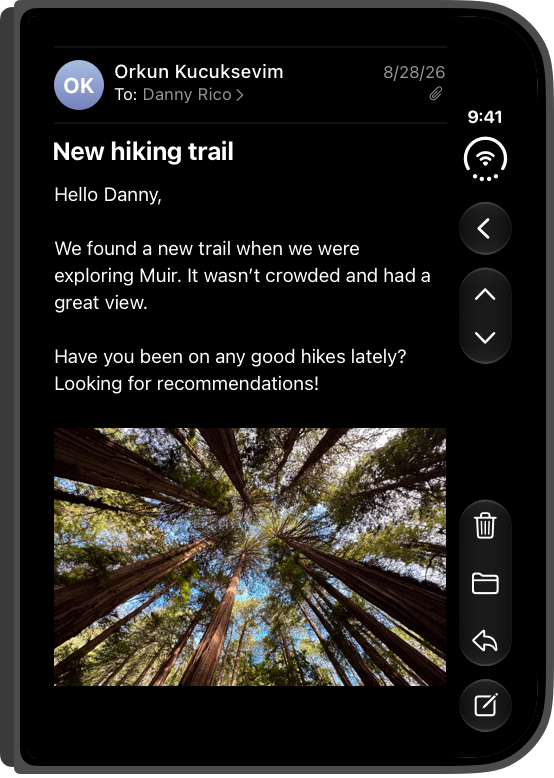
Closed · outer display
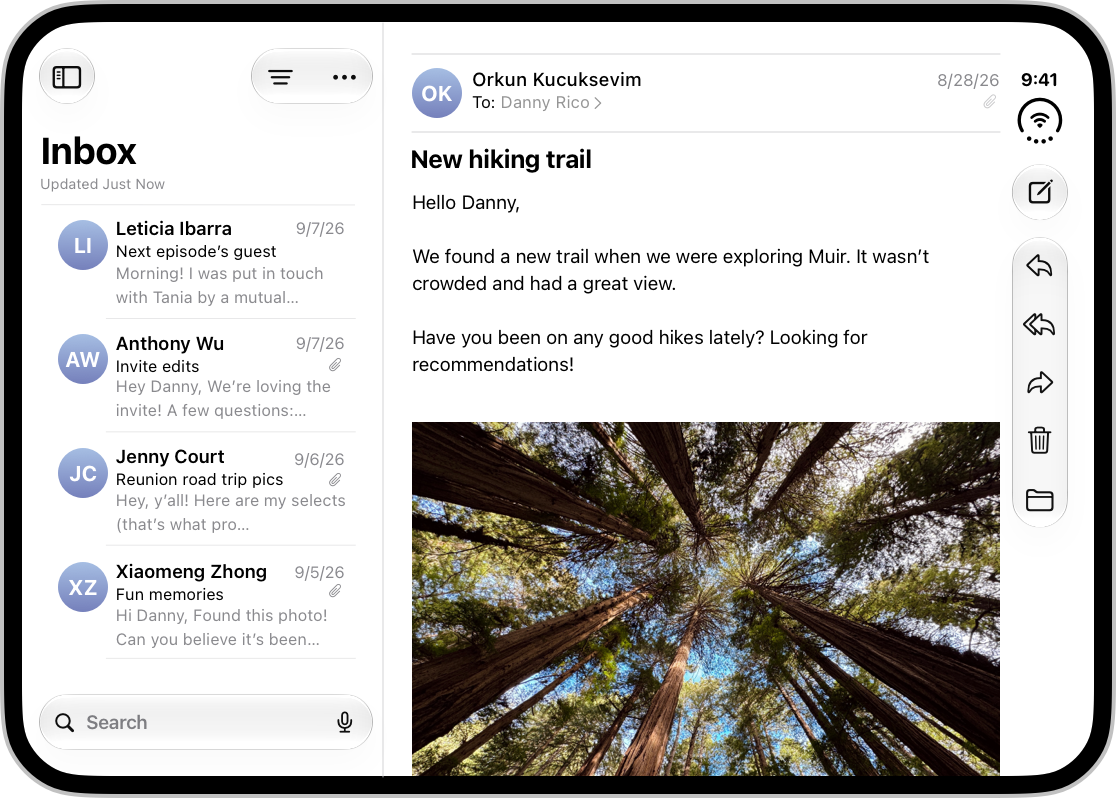
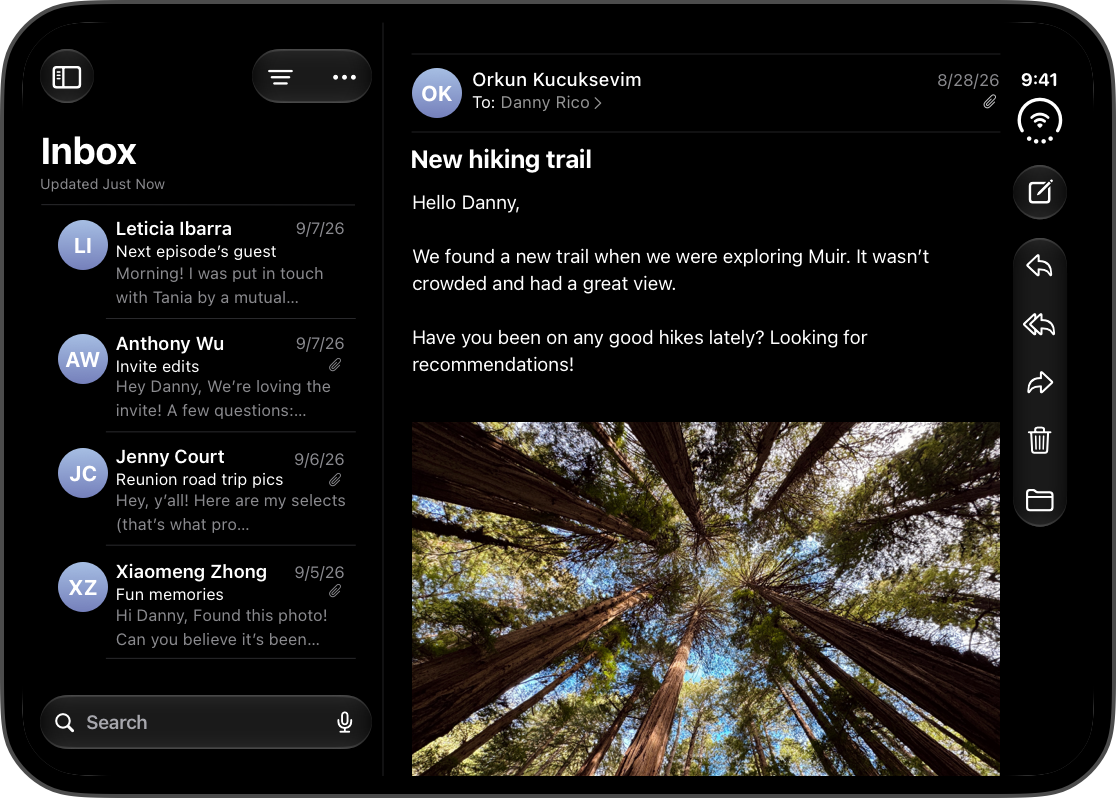
Open · inner display
What it illustrates
- Where the bars go · Rule 8
In the image, the controls for the list stay above the list; only those for the email, in the column along the edge of the screen, move to the side. - Don’t stretch · List and grid · Bars
The same case, for a list screen: in a split view (list and detail), the list keeps its controls above it. - Don’t stretch · List and grid · State and continuity
Mail illustrates the HIG principle behind this check: the same functionality and the same state on both displays, and one more level of hierarchy on the inner display (Best practices). - Don’t stretch · Article, detail page · Bars
The app sets the order in which its actions move into the overflow menu by giving each one a priority; Compose is Apple’s example of an action to keep visible the longest (Raise the bar with iPhone Duo, 13:54).
What Apple says about it
Apple asks you to keep the same functionality, the same state of elements, and the same information hierarchy between displays, with one more level on the inner display when the content suits it. Its example is Mail: closed, the list of emails (the primary level) or an email (the secondary one); open, both side by side.
A system split view expands on the inner display and collapses to a single column on the outer display, just as it already adapts between regular and compact on other iPhone models.
A control stays near the content it affects: if it belongs to an area that isn’t along the edge of the screen, it stays in that area instead of moving to the side. In Mail, the controls for the list of emails stay above the list, to show that they apply to the list, not to the contents of an email.
In a split view, only the detail column moves its controls to the side; those of the other columns stay horizontal.
Frequently used actions, like Compose in Mail, should be among the last to move into the overflow menu, and items with badges stay visible longer. By default, items overflow from bottom to top; the app changes that order by giving them a priority.
On the iPhone Duo product page, Apple shows two apps in Split View: browsing a photo library in Photos on one side, and dragging a photo into Mail on the other.
What the source doesn’t say
- Mail closed on the list of emails: the HIG shows the outer display with an email open, not the list.
- The other poses: Mail partially folded, propped up on a table, or closed in landscape. The product page shows Mail in Split View without describing its controls.
- The order of Mail’s items on the side, and what moves into the overflow menu first: Apple only says that Compose should be among the last to go.
- The Mail team’s own reasons: Apple gives the principles (one more level of hierarchy on the inner display, controls near the content they affect), not the detail of its choices.
FAQ
Why do the buttons for Mail’s list stay at the top on iPhone Duo?
Because they act on the list, not on the open email: Apple asks you to keep a control near the content it affects, and only the column along the edge of the screen moves its controls to the side (Where the bars go, rule 8).
Can you use Mail in Split View on iPhone Duo?
Yes: on the iPhone Duo product page, Apple shows Photos on one side of the inner display and Mail on the other, to drag a photo into it. In Split View, each app places its controls along its outer edge (Where the bars go, rule 4).
Sources
- Designing for iPhone Duo, Apple Human Interface Guidelines, September 9, 2026
- Design for iPhone Duo, Apple Developer, Tech Talk
- Prepare your app for iPhone Duo, Apple Developer, Tech Talk
- Raise the bar with iPhone Duo, Apple Developer, Tech Talk
- Preparing your app for iPhone Duo, Apple Developer Documentation
- iPhone Duo, Apple
- Mail icon: App Store, Apple